SOLIDWORKS System Requirements: What You Need to Run It Smoothly (2026 Guide)
By Panshul Technologies
Introduction
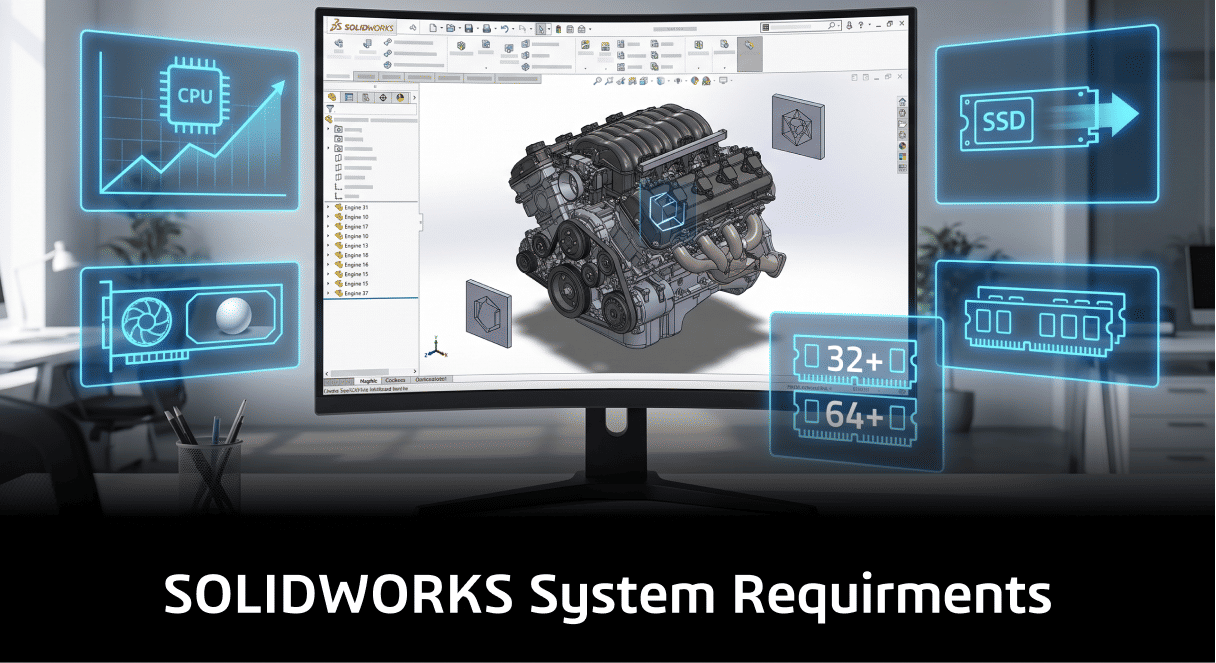
Before installing SOLIDWORKS or upgrading your design team's workstations, you need to know exactly what hardware and software the application requires. Running SOLIDWORKS on an underpowered or unsupported system leads to slow rebuilds, laggy assemblies, crashes, and frustrated engineers.
This guide covers the official SOLIDWORKS system requirements — operating system, processor, RAM, graphics card, and storage — along with practical recommendations for different types of work, from simple part design to large assemblies and simulation. It's written for CAD engineers, IT administrators, and business owners who are planning a new SOLIDWORKS installation, upgrading an existing system, or budgeting for new workstations.
What Are the Minimum System Requirements for SOLIDWORKS?
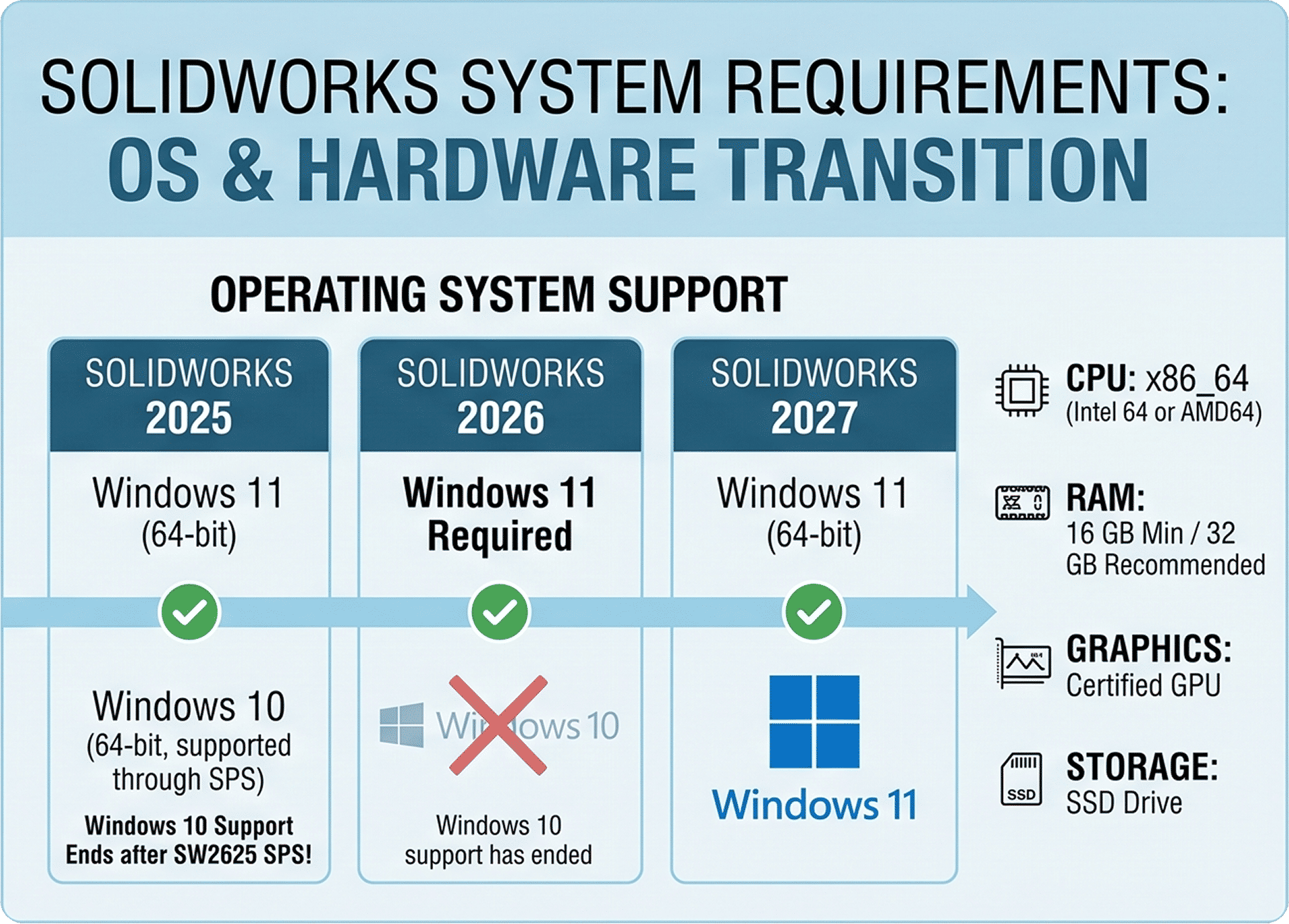
SOLIDWORKS requires a 64-bit Windows operating system, an x86_64 processor (Intel 64 or AMD64), a minimum of 16 GB of RAM (32 GB recommended), a certified graphics card, and an SSD drive. These are the official baseline specifications; actual performance depends heavily on model complexity and the type of work being done.
The sections below break each requirement down in detail, based on the official SOLIDWORKS system requirements published by Dassault Systèmes.
Operating System
Processor
SOLIDWORKS requires an x86_64 processor (Intel 64 or AMD64). Beyond the base requirement, it's worth understanding how SOLIDWORKS actually uses your CPU:
- Parametric part and assembly modeling in SOLIDWORKS is largely single-threaded, so a higher clock speed generally has more impact on day-to-day modeling performance than a higher core count.
- Operations like rendering (SOLIDWORKS Visualize), simulation solvers, and large assembly rebuilds can take advantage of multiple cores.
- If your team regularly works with simulation, rendering, or very large assemblies, a processor that balances high clock speed with a higher core count is worth the investment.
RAM
The official minimum is 16 GB, with 32 GB recommended for general design work. For SOLIDWORKS PDM Contributor/Viewer or SOLIDWORKS Electrical Schematic, the minimum drops to 8 GB (16 GB recommended).
In practice, RAM requirements scale with what you're designing:
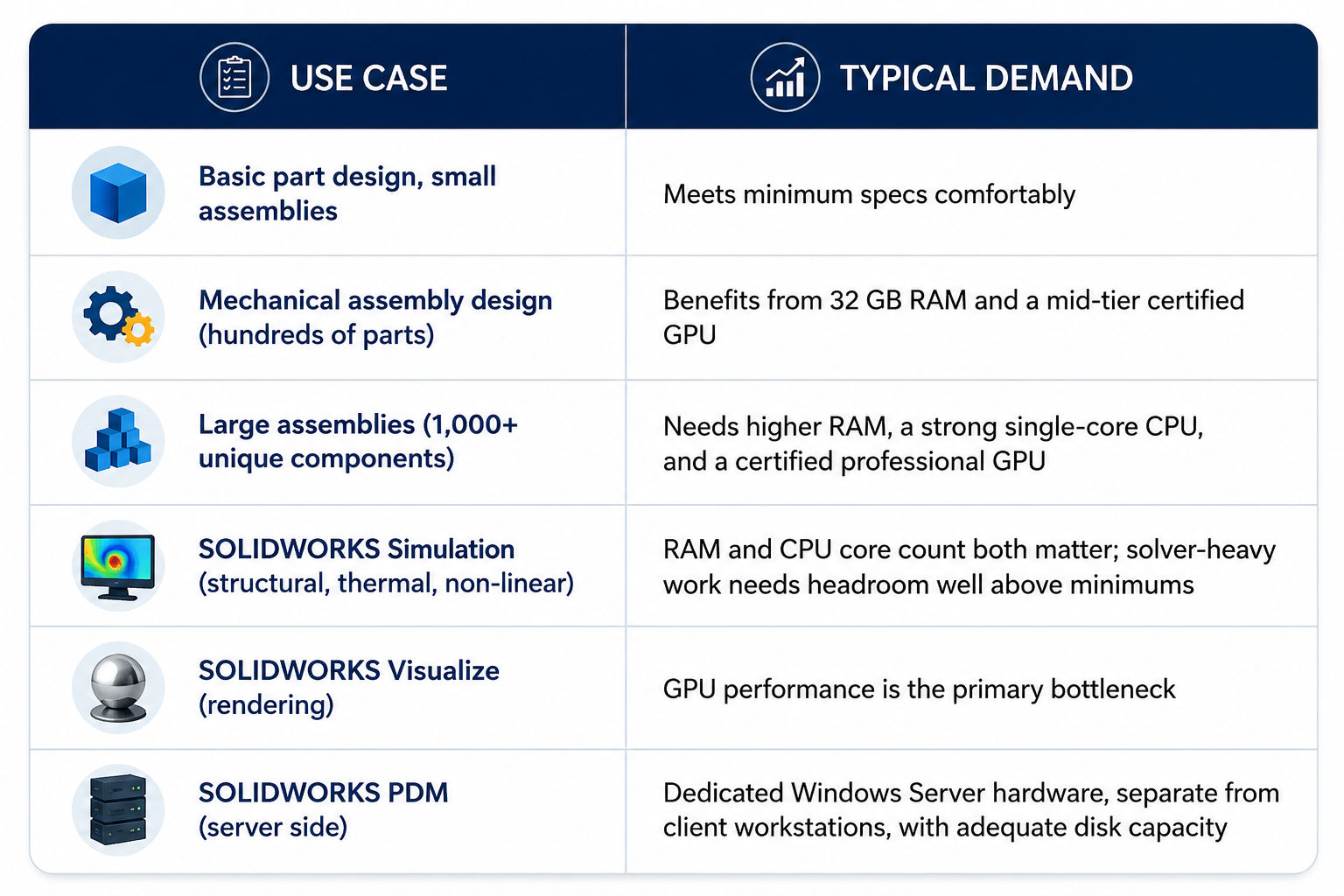
- Small to mid-sized parts and assemblies: 16–32 GB is usually sufficient.
- Large assemblies (thousands of components), complex surfacing, or drawings with many sheets: 32–64 GB is a more realistic working range.
- SOLIDWORKS Simulation, especially non-linear or multi-body studies: Simulation solvers are memory-intensive. If the solver runs out of available RAM, it starts using disk space as virtual memory, which slows down solve times significantly. Teams running simulation regularly should plan for higher RAM configurations.
Graphics Card (GPU)
SOLIDWORKS requires a certified workstation graphics card and driver combination. Consumer or gaming GPUs are not certified for SOLIDWORKS and can cause display glitches, instability, or incorrect rendering, even if they appear powerful on paper. Always check the current SOLIDWORKS Hardware Certification list before purchasing a workstation or GPU.
Storage
SSD drives are recommended for optimal performance. SOLIDWORKS generates temporary files during file open/save operations and simulation runs, so a fast SSD noticeably improves file handling speed compared to a traditional hard drive.
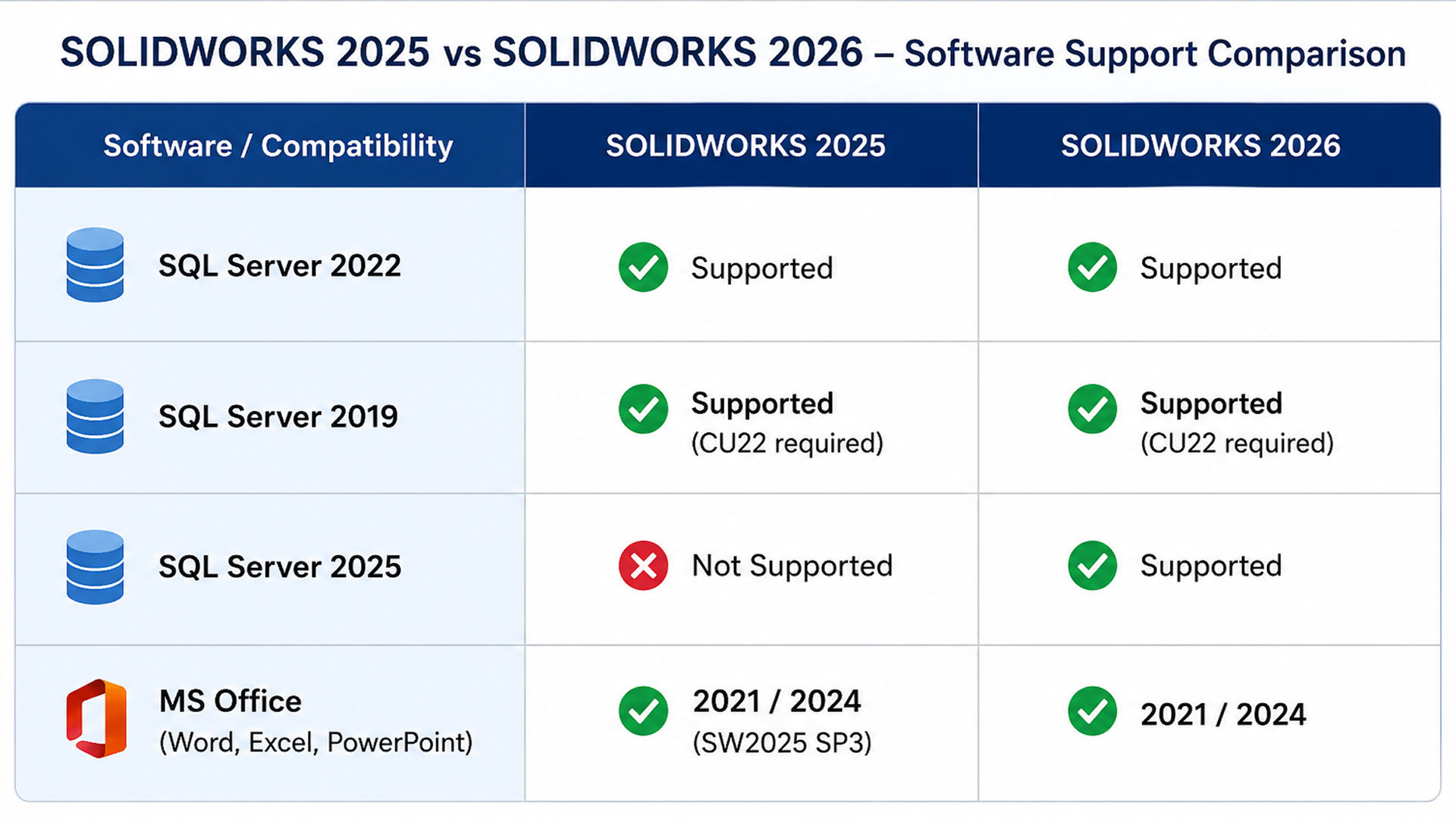
Microsoft SQL Server and Microsoft Office Compatibility
If your organization uses SOLIDWORKS PDM (Product Data Management), SQL Server compatibility matters:
Virtual Environments
SOLIDWORKS supports specific hypervisor versions for virtualized deployments, including VMware vSphere ESXi, VMware Workstation, Microsoft Hyper-V, and Parallels Desktop for Mac. A dedicated GPU is required for acceptable performance in a virtualized environment, and SOLIDWORKS Composer is not supported in virtualized environments at all.
Practical Application: Matching Hardware to Your Workflow
Different engineering roles put different demands on a workstation. Here's how requirements typically scale by use case:
Benefits of Meeting or Exceeding System Requirements
- Faster file open, save, and rebuild times
- Smoother rotation and zoom in large assemblies
- Fewer crashes and unexpected errors during long design sessions
- Reliable simulation solve times without disk swapping
- Better long-term return on your SOLIDWORKS license, since the software runs as intended
Common Challenges and Mistakes
- Using a consumer/gaming graphics card instead of a certified workstation GPU. This is one of the most common causes of display and stability issues in SOLIDWORKS.
- Underestimating RAM needs for simulation work. Teams often size RAM for modeling alone and are then surprised by slow FEA solve times.
- Staying on Windows 10 without a migration plan. Since Windows 10 support has ended starting with SOLIDWORKS 2026, delaying the OS upgrade can block future SOLIDWORKS updates.
- Running SOLIDWORKS files over a network drive or NAS/SAN storage. This is not officially supported and can lead to performance issues and file corruption. Files should be worked on locally or through a proper PDM vault.
- Ignoring driver certification. Even a certified GPU can cause problems if it's running an outdated or uncertified driver version.
Best Practices
- Check the official SOLIDWORKS System Requirements page before every major version upgrade — requirements and OS support windows change annually.
- Size RAM for your heaviest workload, not your average one. If simulation or large assemblies are part of your work even occasionally, plan hardware around those peak demands.
- Buy from the certified hardware and GPU list, not just based on general specs.
- Keep antivirus configured correctly — create exemptions for SOLIDWORKS file types and folders to avoid performance issues during file operations, while keeping the antivirus itself updated.
- Plan your OS and SQL Server upgrade path ahead of end-of-support dates so you're not forced into an emergency migration.
- Separate PDM server hardware from client workstations, especially for the archive and database servers in SOLIDWORKS PDM Professional.
FAQ
Does SOLIDWORKS 2026 run on Windows 10? No. Windows 10 support ends at SOLIDWORKS 2025 SP5. SOLIDWORKS 2026 and later require Windows 11 (64-bit).
How much RAM do I need for large assembly design in SOLIDWORKS? The official minimum is 16 GB (32 GB recommended). For large assemblies with thousands of unique components, teams typically need well above the minimum to avoid the system swapping data to disk, which slows down performance.
Can I use a gaming graphics card with SOLIDWORKS? It's not recommended. SOLIDWORKS requires certified workstation graphics cards and drivers. Consumer gaming GPUs are not certified and can cause display errors or instability.
Is a laptop good enough to run SOLIDWORKS? A laptop can run SOLIDWORKS if it meets the certified hardware requirements, including a certified mobile workstation GPU. Performance on large assemblies or simulation work will generally be lower than on a desktop workstation with the same specs.
Does SOLIDWORKS support macOS? SOLIDWORKS itself runs on Windows only. eDrawings, the viewer application, has separate macOS system requirements and supports specific macOS versions.
Conclusion
Meeting SOLIDWORKS system requirements isn't just a checkbox before installation — it directly affects how productive your design and engineering team can be. Getting the operating system, RAM, processor, and certified GPU right up front saves you from performance problems, failed installations, and unnecessary hardware upgrades down the line.
If you're planning a new SOLIDWORKS rollout, upgrading to SOLIDWORKS 2026, or simply unsure whether your current workstations can handle your design workload, Panshul Technologies can help you evaluate your requirements and plan the right setup as an authorized SOLIDWORKS reseller and solutions provider in Mumbai.